In What Is a Data Agent? A Practical Introductionwe covered the concept: a governed, natural-language layer over your warehouse. This post is the unglamorous part before any of that: getting a Fabric data agent to exist at all, pointed at a warehouse with data in it. Skip a prerequisite here, and you don't get an interesting error, you get "technical issue with the data source" with no further detail, twenty minutes into what should have been a five-minute setup.
What you need before you start
A Fabric data agent is a workspace item like any other,
which means its prerequisites are mostly about the workspace and capacity
underneath it, not the agent itself:
·
A paid
F2-or-higher Fabric capacity, or a Power BI Premium per capacity (P1 or
higher) with Microsoft Fabric enabled. F2 is a real floor here, not a
"recommended minimum" you can ignore for a quick test.
·
Cross-geo
processing and storing for AI enabled at the tenant level. This is a
separate toggle from just having Fabric enabled, and it's the kind of setting a
tenant admin flips once and everyone forgets exists, until a data agent refuses
to process anything.
·
A
warehouse with actual data in it. A lakehouse, semantic model, KQL
database, or mirrored database all work too, but this series is
warehouse-first.
·
Read
access to that warehouse. Not Build, not Contributor. The agent runs every
query under your own Entra ID identity and permissions, so if you can't query
the warehouse yourself, the agent can't either.
·
The
data agent's workspace capacity in the same region as the data source's
capacity. This one's easy to miss because nothing warns you upfront: a
lakehouse on a North Europe capacity paired with a data agent on a France
Central capacity simply fails to execute, with no obvious reason why from the
error alone.
That last point is worth sitting with. It's not a
permissions problem or a syntax problem, it's a topology problem, and it's much
cheaper to check before you build than to diagnose after.
Creating the data agent
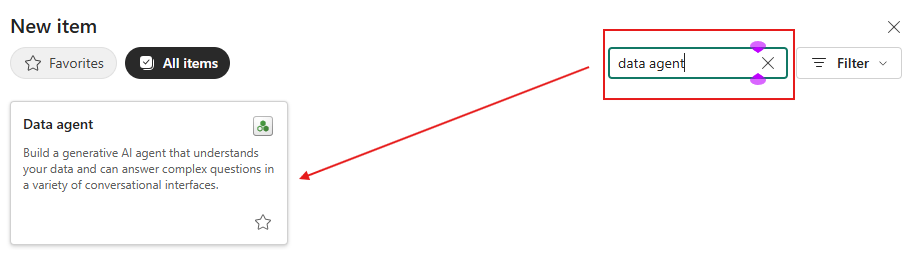
Once the capacity and workspace side is sorted, creating the
agent itself is short: in your workspace, select + New Item, search for Fabric
data agent in the All Items list, and give it a name. There's no Azure
OpenAI key to generate and no token to paste in anywhere. Fabric uses a
Microsoft-managed Azure OpenAI Assistant behind the scenes and handles that
authentication for you, which is one fewer credential for you to manage and
rotate.
Name it for what it's for, not for who built it. A Fabric
data agent is a standalone, configurable artifact that can be surfaced well
beyond its own chat window: through Microsoft 365 Copilot, Microsoft Copilot
Studio, Azure AI Foundry, or Teams. If someone finds "Sales Agent"
listed as an available tool inside a multi-agent Copilot Studio flow six months
from now, a name that describes scope beats one that describes a project code
name.
Adding your warehouse as a data source
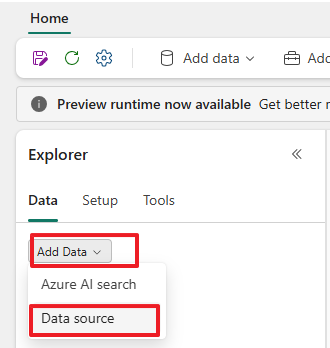
A single data agent can combine up to five data sources in any mix (we touched on this in Part 1's anatomy table), but for now you're adding one: your warehouse. The OneLake catalog appears automatically the first time you name a new agent; pick the warehouse, select Add, and the Explorer pane on the left populates with every table available in it.
This is also the point where a small naming habit pays off
disproportionately. If your warehouse has columns named C1
or ActCust, rename them, or at least don't expect the
agent to guess that ActCust means "active
customer." Descriptive table and column names are consistently the
cheapest lever for better query generation, and it costs nothing to fix now
versus after you've written a dozen data source instructions around a confusing
schema.
You don't have to expose every table in the warehouse. Use
the checkboxes in the Explorer pane to select just the tables this agent should
be allowed to see, which is the first and simplest layer of the schema
governance we'll get into properly in Part 6.
None of this is permanent. Hover a data source in the
Explorer pane and its three-dot menu lets you Remove it entirely or Refresh
it if the underlying tables changed, so there's no cost to starting narrow and
adding more tables (or a second data source entirely) once you've seen what
people actually ask.
Gotchas worth planning around
·
Region
mismatch fails silently. As above: match capacities across the data agent
and every data source it uses, before you build anything on top.
·
Semantic
models need Read, not Build. If you later add a Power BI semantic model as
a second source, Read permission on the model is sufficient for the agent to
query it. You don't need workspace-level access or Build permission, which
surprises people expecting the usual Power BI permission model.
·
You can't
swap the underlying LLM. Whatever model Fabric uses for the data agent
today is what you get. Plan your instructions and examples (Parts 6 through 11)
around consistent behavior, not around tuning a model choice you don't control.
·
Outbound
access protection can block the agent, not just users. If your workspace
has outbound access protection enabled, the data agent's own connections to
external data sources are subject to the same admin-approved data connection
rules as everything else in the workspace. If a connection isn't on the allow
list, queries that depend on it fail, and it looks exactly like an agent
problem until someone checks the workspace settings.
Key takeaways
·
Most "the data agent doesn't work"
problems at this stage are capacity, region, or permission problems, not agent
configuration problems.
·
F2-or-higher capacity, cross-geo AI processing
enabled, and matching regions between the agent's capacity and every data
source's capacity are non-negotiable prerequisites, not nice-to-haves.
·
Creating the agent itself takes minutes: + New Item → Fabric data agent → name it.
No keys, no tokens.
·
Adding a warehouse means picking it from the
OneLake catalog and selecting only the tables you want the agent to see.
·
Fix bad table and column names now. It's the
single cheapest improvement you can make before writing a word of agent
instructions.
What's next
Next in the series: Connecting
and Authenticating a Warehouse Data Source. We'll go one level deeper into
the connection itself: Entra interactive auth, using sqlcmd
-G to poke at the warehouse from the command line while you're building,
and a foreground-auth gotcha that's easy to hit the first time.
0 comments
No comments yet. Be the first to comment!